

eGirl Daily
  • Home
  • It Girls
    • Cosplay
    • TikTok & Reels
    • IG Models
    • Models
  • Streamers
    • Streamer Girls
    • YouTubers
  • Tea & Drama
    • Scandals
    • Relationship Tea
  • Gaming
    • Game News
    • Esports
  • Net Buzz
    • Internet & Trends
No Result
View All Result
  • Home
  • It Girls
    • Cosplay
    • TikTok & Reels
    • IG Models
    • Models
  • Streamers
    • Streamer Girls
    • YouTubers
  • Tea & Drama
    • Scandals
    • Relationship Tea
  • Gaming
    • Game News
    • Esports
  • Net Buzz
    • Internet & Trends
No Result
View All Result
eGirl Daily

Turn Your Windows Laptop Into a Virtual Router to Share Internet

A simple trick to safely share internet and files on Windows.

by Sofia Reyes
July 20, 2026
Reading Time: 2 mins read
0
Share on FacebookShare on Twitter

At home or in a company project room, you might use a wireless router to share internet and files with multiple computers. But if your wireless router breaks, you can quickly turn a Windows laptop into a handy replacement device. Here’s how.
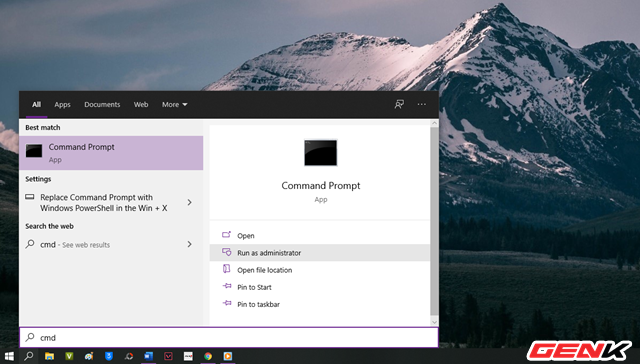
photo 1 1632824034482371077552

Open Command Prompt as an administrator by right-clicking the Start menu or searching for it.
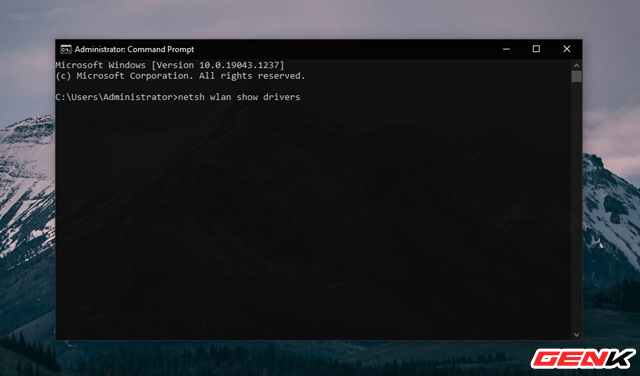
photo 1 16328240362061695429551

Type netsh wlan show drivers into Command Prompt and press ENTER.
RELATED STORIES

Tennis Influencer Sparks Backlash for Provocative Tennis Ball Stunt

Tax Officer Turns Heads Online, Revealed as Famous Rich Kid

photo 2 16328240366421564121238

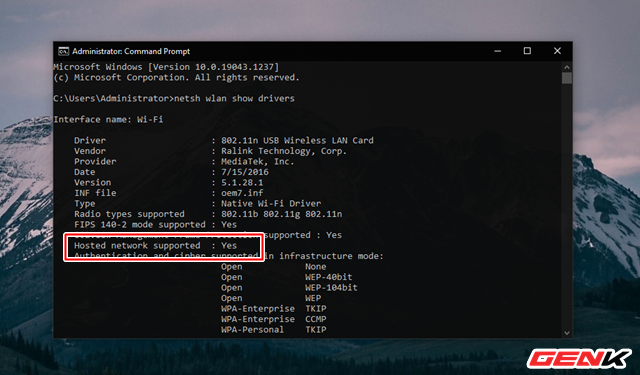
Wait a few seconds for the system to display info. Look for the line Hosted network supported. If it says Yes, your computer can create its own WiFi hotspot. If it says No, your PC doesn’t support this feature.
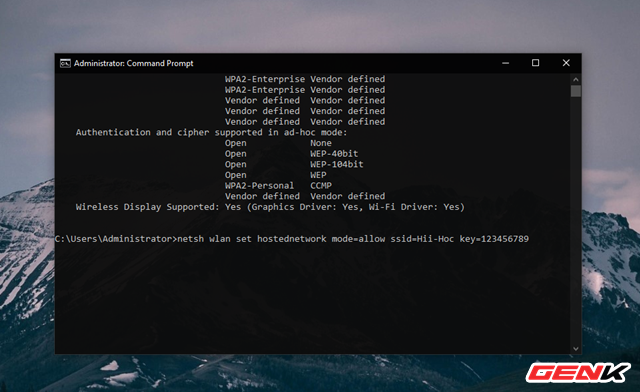
photo 3 1632824037181525630845

If you see Hosted network supported: Yes, enter the command netsh wlan set hostednetwork mode=allow ssid=[WiFi-name] key=[password]. Replace [WiFi-name] and [password] with your chosen network name and password, then press ENTER.
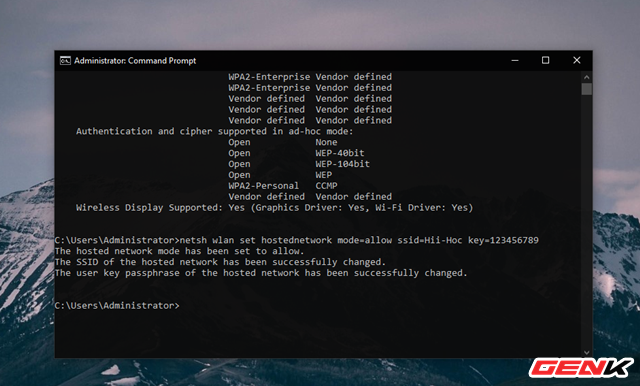
photo 4 16328240366971537770639

After setting it up, Command Prompt will show some confirmation messages.
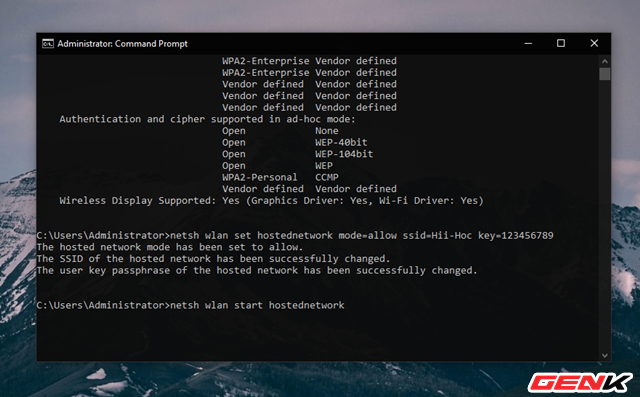
photo 5 16328240362401932061263

Next, type netsh wlan start hostednetwork and press ENTER to start your virtual router.
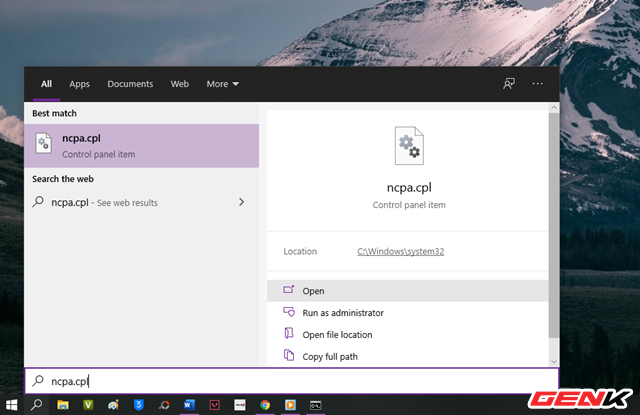
photo 6 16328240387241770641668

Once the virtual router is running, open Network Connections by typing ncpa.cpl into the search bar.
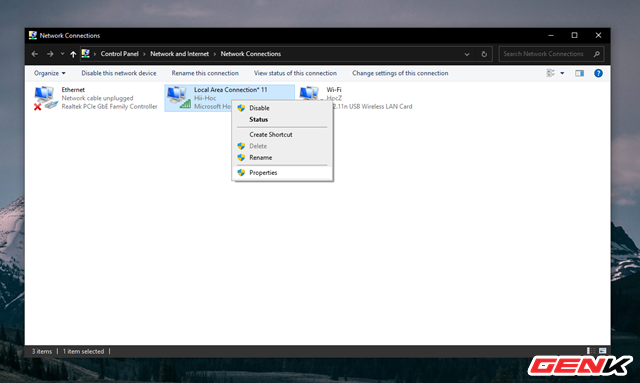
photo 7 16328240382241344948858

A list of connections will appear. Find the one you just created, right-click it, and select “Properties.”
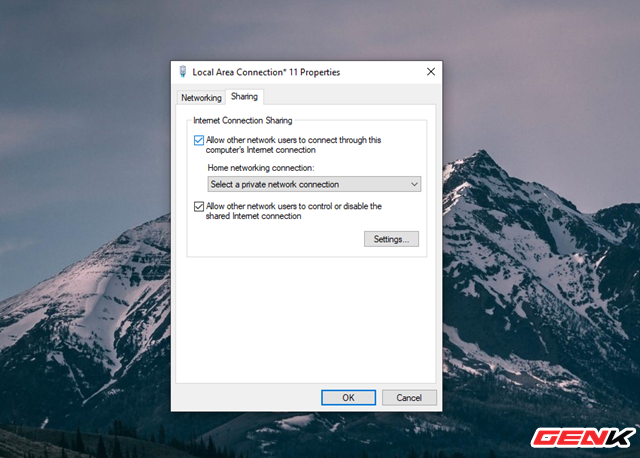
photo 8 1632824037697653955479

In the Properties window, click the “Sharing” tab at the top and check the box for “Allow other network users to connect through this computer’s Internet connection.”
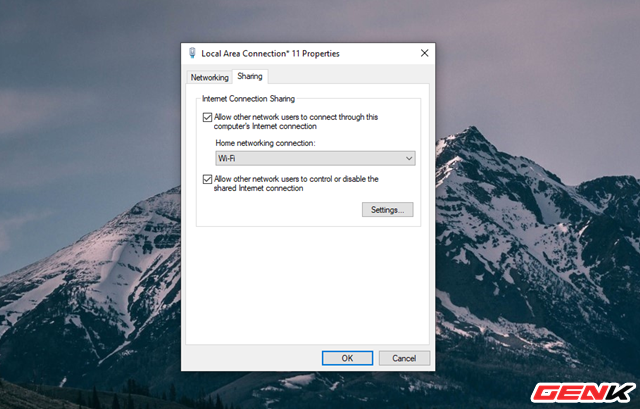
photo 9 16328240362631680493546

Then, open the dropdown menu under “Home network connection” and select the connection that matches your virtual router setup. Click “OK” to save.
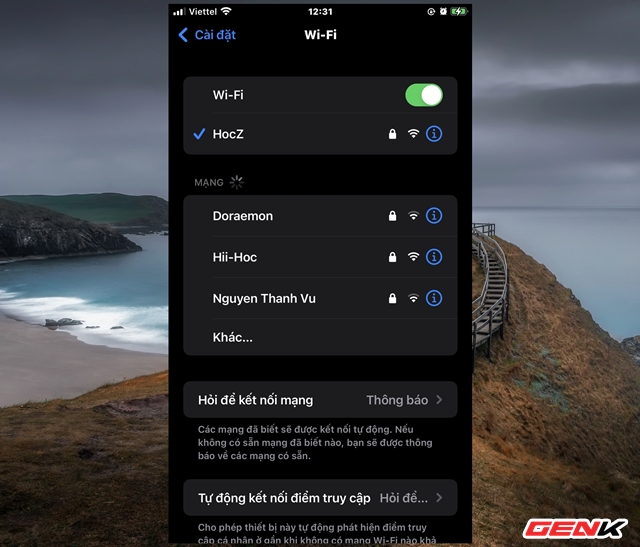
photo 10 16328240367161330850793

Now, just connect your device to the new “router” network. If you want VPN support, you’ll need to install and configure OpenVPN on your PC.

Pretty simple, right?

Tags: computergame newsonline communitytipsWindows

Popular

  • The Dark Truth Behind Hidden Spy Cameras and Exploitation Rings

    0 shares
    Share 0 Tweet 0
  • MC Phương Thảo Jokes About Her ‘Bad Luck’ Curse in Liên Quân

    0 shares
    Share 0 Tweet 0
  • Melody Marks Claps Back at Plastic Surgery Rumors

    0 shares
    Share 0 Tweet 0
  • Viral Photo of Student Signing Yearbook on Lingerie Sparks Debate

    0 shares
    Share 0 Tweet 0
  • Paraguayan Fan Sparks AI Beauty Rumors at World Cup 2026

    0 shares
    Share 0 Tweet 0

Latest Stories

TikToker Faces Backlash for Trapping Female Football Fan in Viral Interview

Tennis Influencer Sparks Backlash for Provocative Tennis Ball Stunt

Gấm Kami Shines Bright and Stands Strong Today

About eGirl Daily

eGirl Daily covers the hottest streamers, cosplay, gaming and viral internet culture, fresh every day. Learn more »

Recent Stories

  • TikToker Faces Backlash for Trapping Female Football Fan in Viral Interview
  • Tennis Influencer Sparks Backlash for Provocative Tennis Ball Stunt

Newsletter

  • About
  • Contact
  • Privacy Policy
  • Terms of Service
  • DMCA

© 2026 eGirl Daily. All rights reserved.

No Result
View All Result
  • Home
  • It Girls
    • Cosplay
    • TikTok & Reels
    • IG Models
    • Models
  • Streamers
    • Streamer Girls
    • YouTubers
  • Tea & Drama
    • Scandals
    • Relationship Tea
  • Gaming
    • Game News
    • Esports
  • Net Buzz
    • Internet & Trends