

Many families have struggled to buy webcams for online learning on laptops or PCs due to shipping issues and other reasons. This article shows parents how to use apps that turn iPhone and Android phone cameras into webcams, helping students keep their classes going without interruption.
How to Use Your iPhone or Android Phone as a Wireless Webcam for PC
For wireless connection, you can use a cross-platform app called DroidCam by Dev47app to turn your phone’s camera into a webcam. The free version of DroidCam offers enough features and a smooth experience, so upgrading to the $5 DroidCamX isn’t necessary.
Step 1: Download and install DroidCam from Google Play or the App Store. Then, download DroidCam Client for PC from the official site at https://www.dev47apps.com/droidcam/windows/. After installing both, make sure your computer and phone are connected to the same Wi-Fi network.
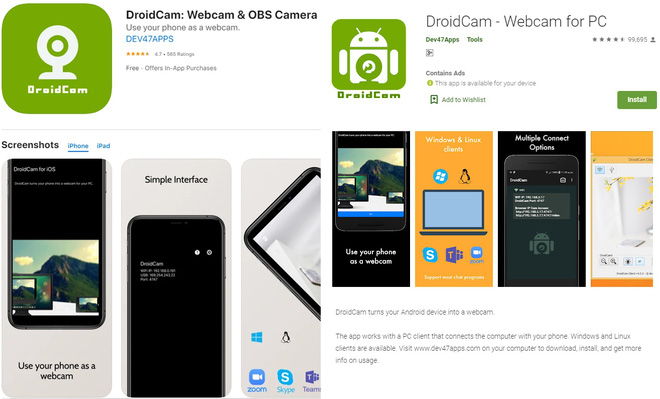
Step 2: Open DroidCam on your phone and DroidCam Client on your PC by clicking the desktop shortcut.
Step 3: The DroidCam app on your phone will show your device’s IP address under WIFI IP (e.g., 192.168.0.200). On the PC app, enter this IP address into the Connect box. Leave the DroidCam Port set to 4747 by default.
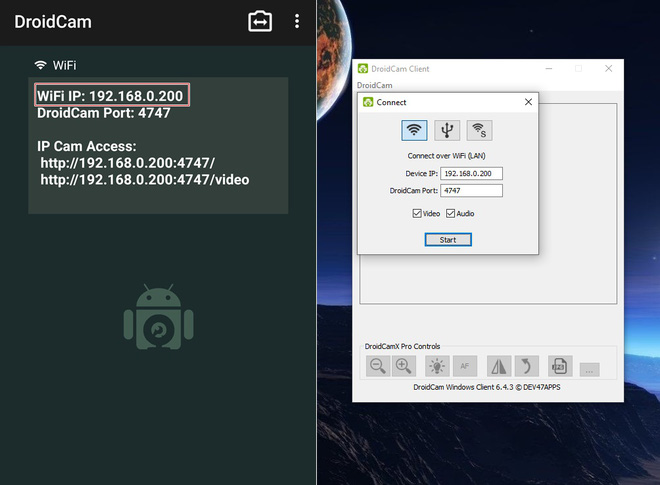
Type the IP address (e.g., 192.168.0.200) shown on your phone’s DroidCam app into the Device IP field on the PC app. Keep the port at 4747.
Step 4: After entering the IP, click Start to connect and sync your PC and phone through DroidCam.
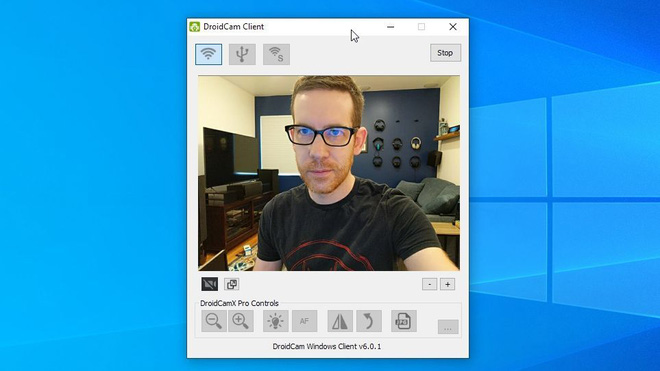
Once connected, the camera feed from your phone will show in the app’s preview window, confirming everything is working properly.
How to Use Your iPhone or Android Phone as a Wired Webcam via USB
Using a USB cable offers better stability, faster data transfer, and higher image quality compared to wireless connections, which can suffer if Wi-Fi is unstable or slow.
We recommend trying the newer app Camo, which has received great reviews. The free version of Camo (developed by Reincubate) offers a smooth experience and more customization options than DroidCam.
Note that Camo only supports connections via Lightning to USB cables for iOS devices, or Type C / Micro USB to USB cables for Android devices when connecting to PC or Mac. The setup process is similar to DroidCam.
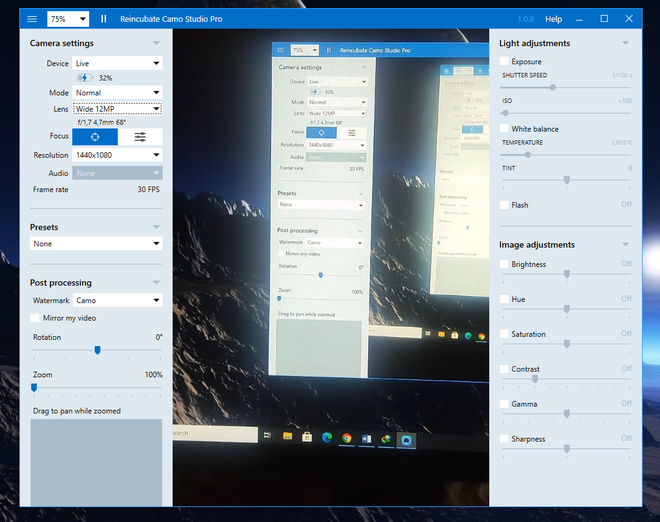
The Camo Studio interface on PC offers many options for resolution, lighting, color, and contrast adjustments.
Step 1: First, install the Camo app from Google Play or the App Store. Then download and install Camo Studio for PC or Mac from https://reincubate.com/camo/downloads/.
Step 2: After installation, connect your phone to your PC or Mac using the appropriate USB cable.
Step 3: Launch Camo Studio on your computer and open the Camo app on your phone. Camo Studio will automatically detect and connect to your phone’s camera, turning it into a webcam without any extra steps.
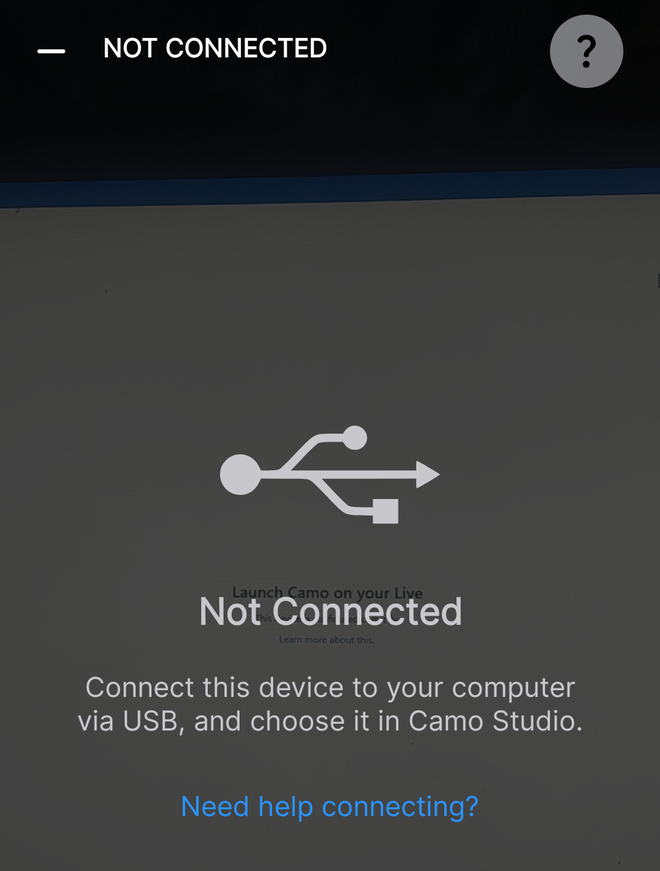
If Camo on your phone doesn’t detect the connection, the developer suggests unplugging and reconnecting the USB cable.
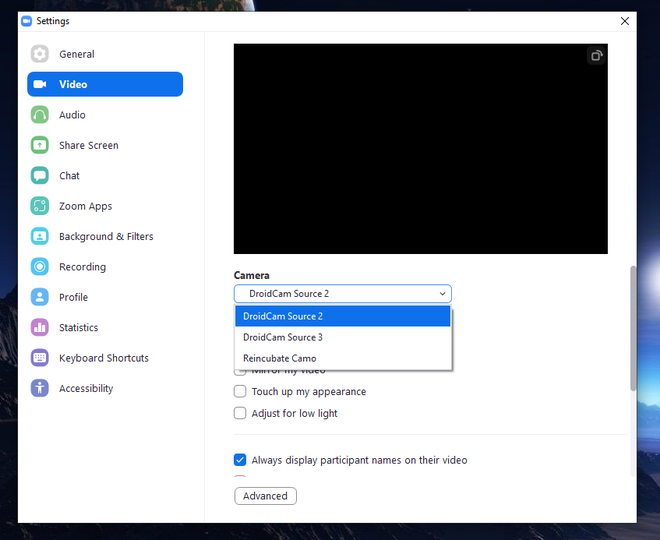
Once the webcam is set up, your phone’s camera will appear as the virtual webcam software name. You can use it directly in video meeting apps like Zoom, Google Meet, or Microsoft Teams without extra configuration.
Note that Android users need to enable Developer Options and turn on USB Debugging to use Camo. Go to Settings > About phone > Software info > More, then tap Build number 7 times to activate Developer Options.
Then go back to Settings > System, find Developer Options, and enable USB Debugging. This guide is based on a Vsmart phone, but the steps are similar on other Android devices.
Summary

