

A crosshair, also called an aiming reticle, is a must-have for FPS gamers. It helps players aim more easily and also reduces dizziness or nausea when playing first-person games since you only focus on one spot on the screen.
Most gaming monitors today come with a built-in crosshair feature you can turn on anytime if the game itself doesn’t have one. But with Crossover, a free app, you can add a crosshair to any game without needing a gaming monitor. Plus, you can customize the crosshair to fit your needs, something not all games allow. That’s why we’re recommending this app.
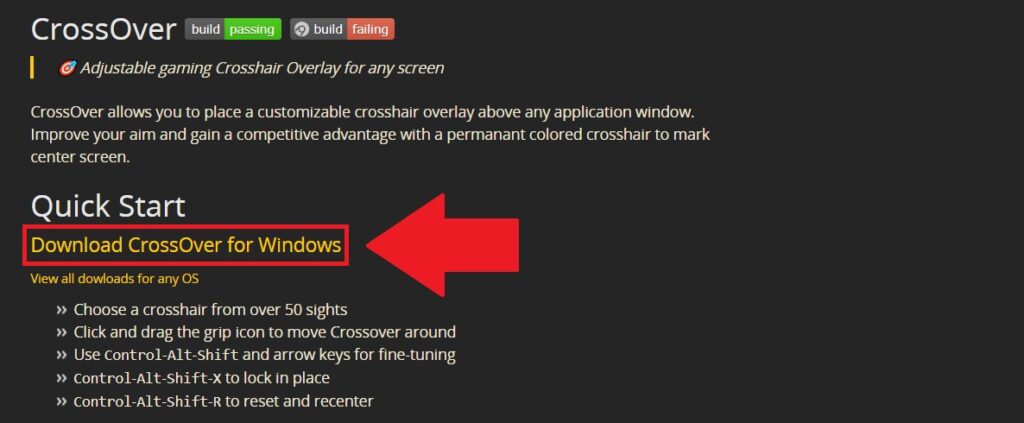
Step 1: First, download the Crossover app here. Then select Download CrossOver for Windows to get the installer.
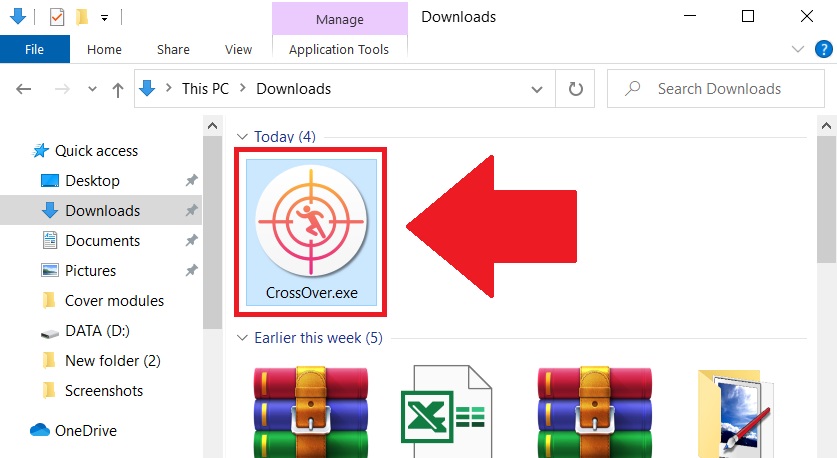
Step 2: Once downloaded, open the CrossOver.exe file to start installing.
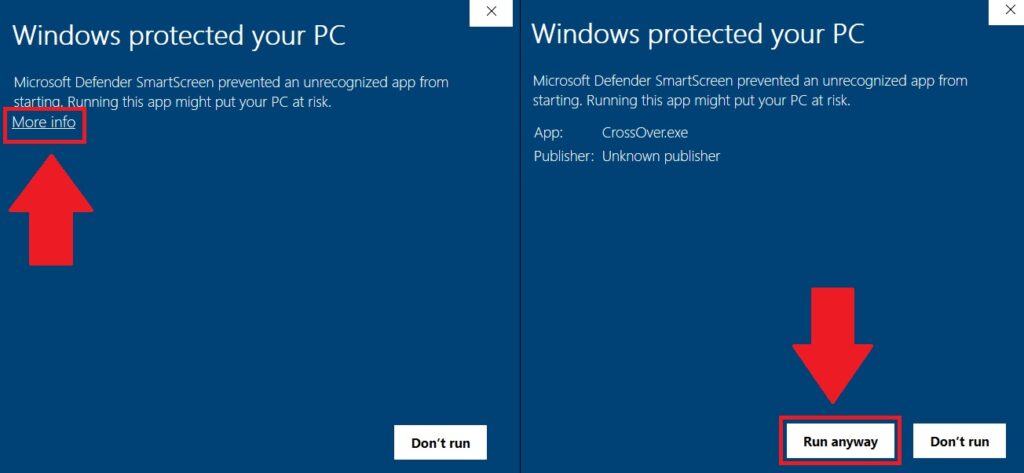
Step 3: If Windows Defender pops up a warning, click More info then choose Run anyway.
Step 4: After installation, the app’s settings window will open. Here, you can pick any crosshair style and color you like by clicking Choose Crosshair.
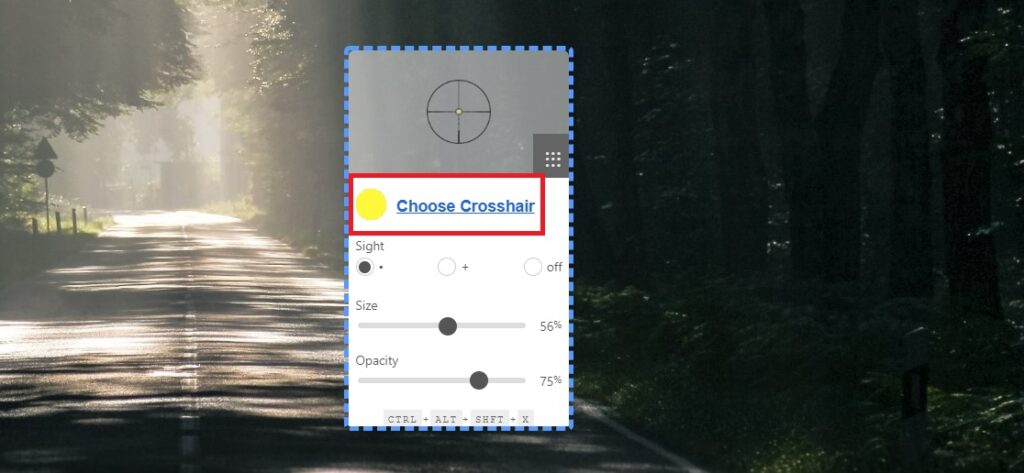
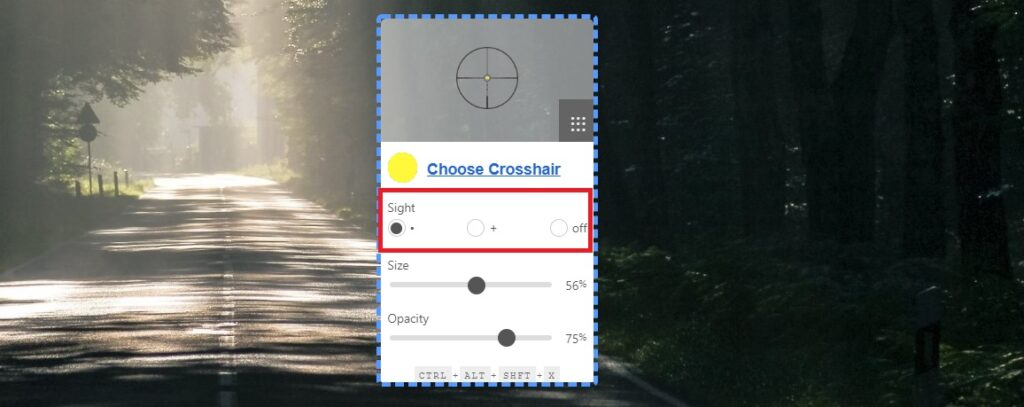
Step 5: Under Sight, you can choose to have a dot, a plus sign, or nothing in the center of your crosshair, whatever suits you best.
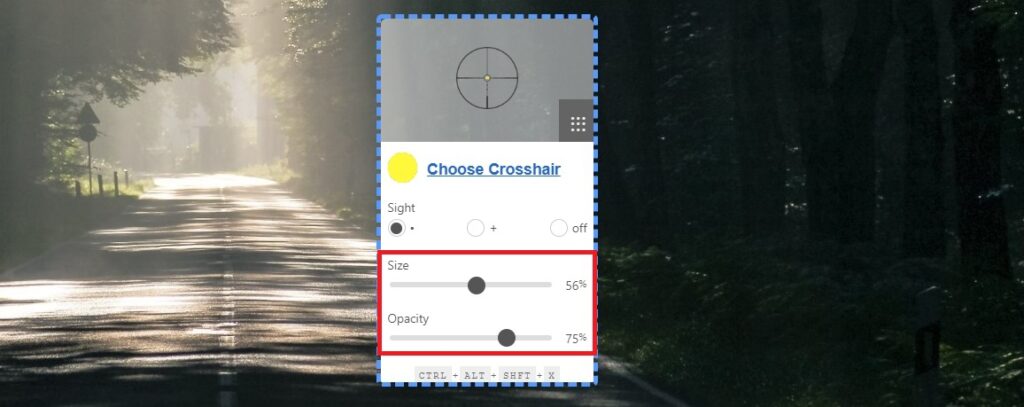
Step 6: Finally, adjust the crosshair size by sliding the bar under Size. You can also tweak the Opacity to make the crosshair more or less visible, so it doesn’t get lost in the game’s background.
Once you finish customizing, click and hold the settings window to drag the crosshair anywhere on your screen. Then press Ctrl + Alt + Shift + X to lock it in place.

To unlock and move the crosshair again, just press Ctrl + Alt + Shift + X once more.
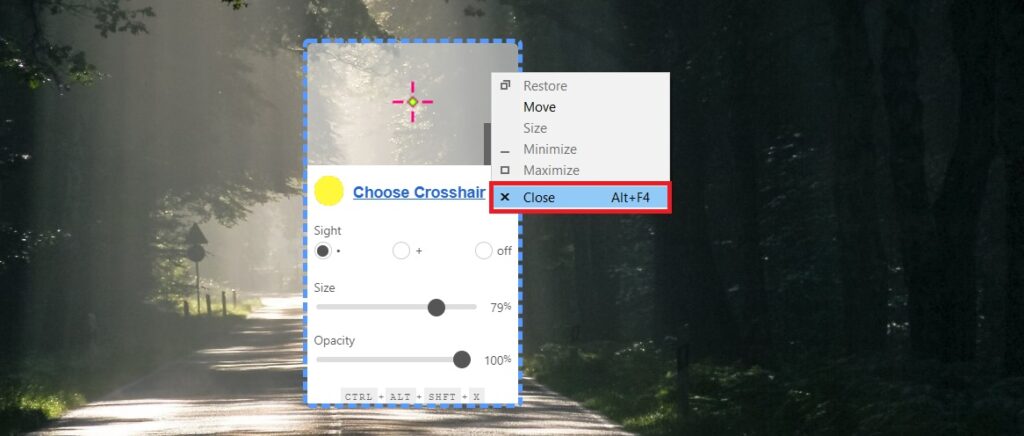
To close the Crossover app, right-click the settings window and select Close.
That’s it! Now you know how to add and customize a crosshair for any game. Good luck and happy gaming!
Source: Gearvn

