

eGirl Daily
  • Home
  • It Girls
    • Cosplay
    • TikTok & Reels
    • IG Models
    • Models
  • Streamers
    • Streamer Girls
    • YouTubers
  • Tea & Drama
    • Scandals
    • Relationship Tea
  • Gaming
    • Game News
    • Esports
  • Net Buzz
    • Internet & Trends
No Result
View All Result
  • Home
  • It Girls
    • Cosplay
    • TikTok & Reels
    • IG Models
    • Models
  • Streamers
    • Streamer Girls
    • YouTubers
  • Tea & Drama
    • Scandals
    • Relationship Tea
  • Gaming
    • Game News
    • Esports
  • Net Buzz
    • Internet & Trends
No Result
View All Result
eGirl Daily

How to Create a Big, Clear Crosshair for Any FPS Game

This makes gaming way easier...

by Ryan Cole
July 28, 2026
Reading Time: 3 mins read
0
Share on FacebookShare on Twitter

A crosshair, also called an aiming reticle, is a must-have for FPS gamers. It helps players aim more easily and also reduces dizziness or nausea when playing first-person games since you only focus on one spot on the screen.

Most gaming monitors today come with a built-in crosshair feature you can turn on anytime if the game itself doesn’t have one. But with Crossover, a free app, you can add a crosshair to any game without needing a gaming monitor. Plus, you can customize the crosshair to fit your needs, something not all games allow. That’s why we’re recommending this app.

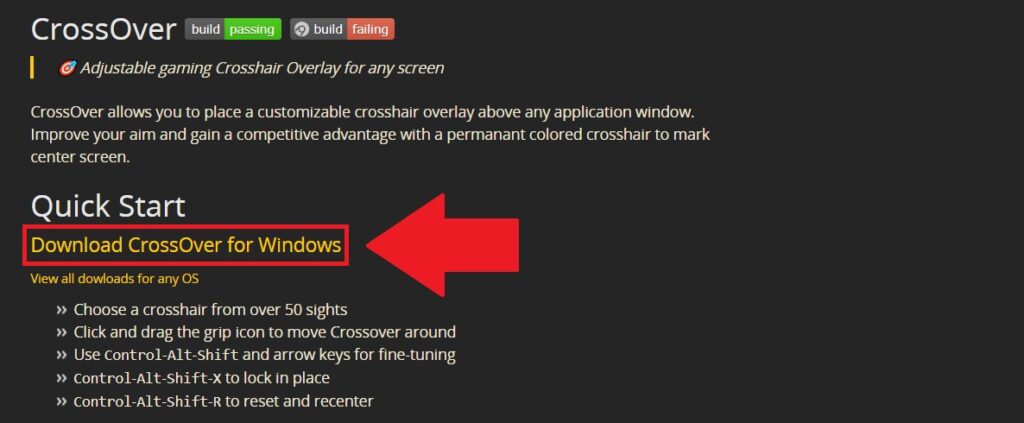
Step 1: First, download the Crossover app here. Then select Download CrossOver for Windows to get the installer.
RELATED STORIES

Silkroad Origin Mobile Launches New LEGACY Server

Hao Khi Du Hiep Launches With Massive Player Rush

Crossover download page

Step 2: Once downloaded, open the CrossOver.exe file to start installing.
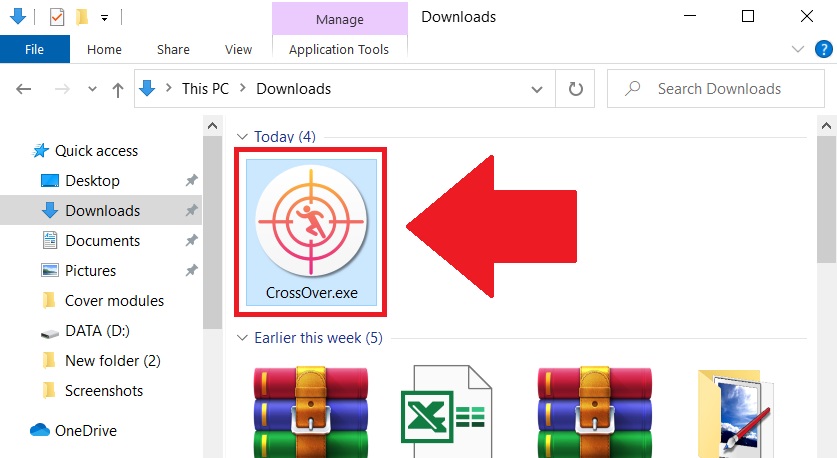
Running CrossOver installer

Step 3: If Windows Defender pops up a warning, click More info then choose Run anyway.
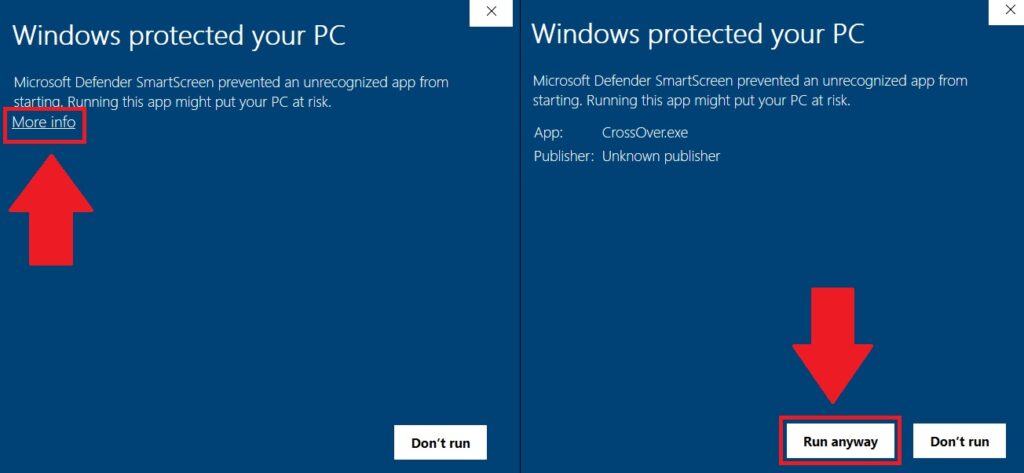
Windows Defender warning

Step 4: After installation, the app’s settings window will open. Here, you can pick any crosshair style and color you like by clicking Choose Crosshair.
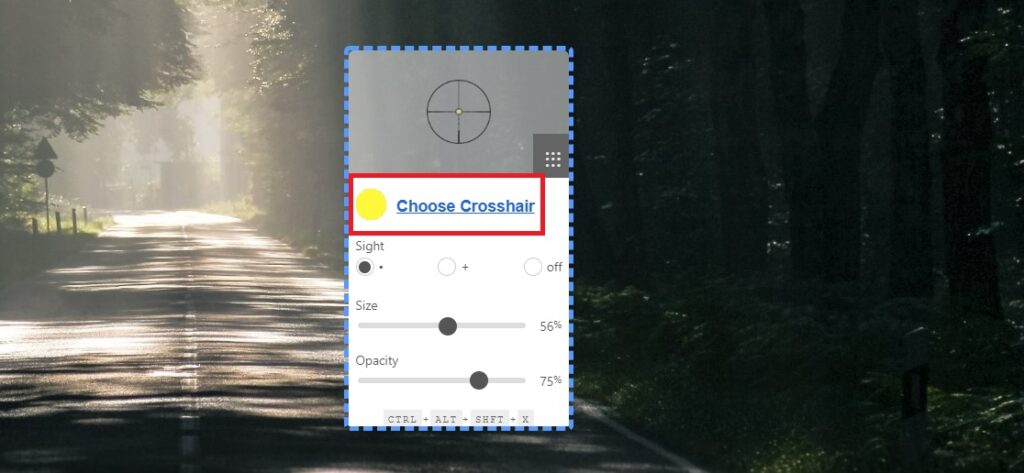
Crosshair selection menu

Step 5: Under Sight, you can choose to have a dot, a plus sign, or nothing in the center of your crosshair, whatever suits you best.
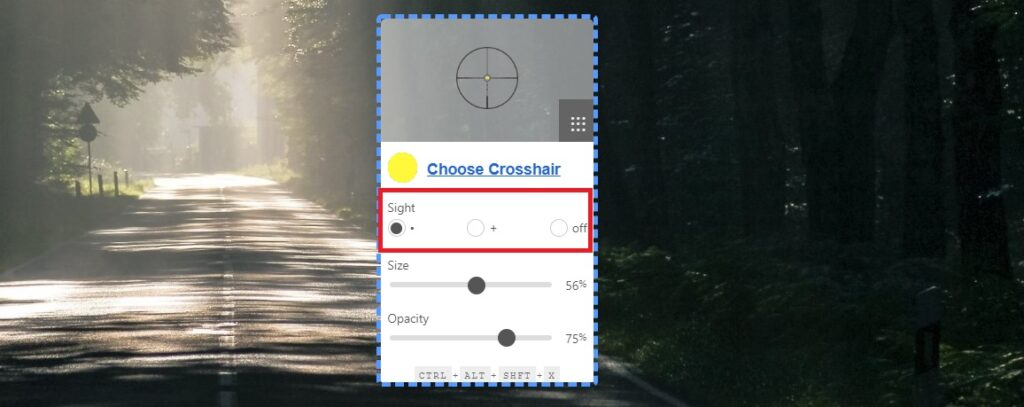
Sight options

Step 6: Finally, adjust the crosshair size by sliding the bar under Size. You can also tweak the Opacity to make the crosshair more or less visible, so it doesn’t get lost in the game’s background.
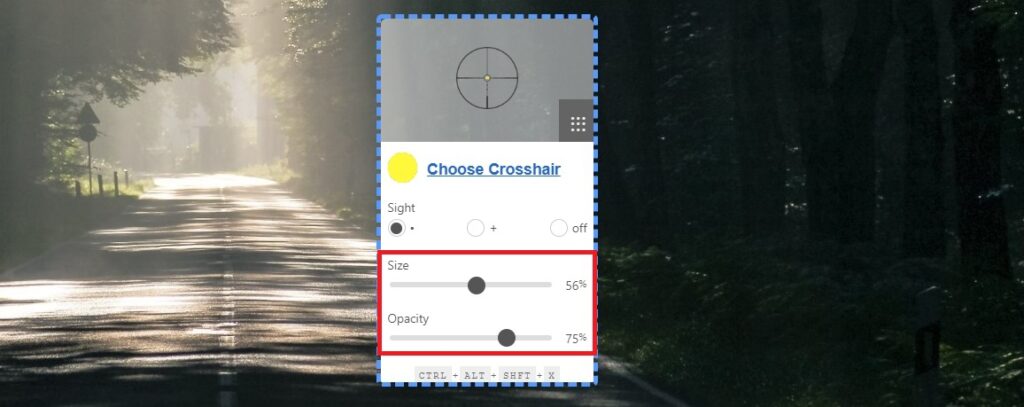
Size and opacity settings

Once you finish customizing, click and hold the settings window to drag the crosshair anywhere on your screen. Then press Ctrl + Alt + Shift + X to lock it in place.

Locking crosshair position

To unlock and move the crosshair again, just press Ctrl + Alt + Shift + X once more.

To close the Crossover app, right-click the settings window and select Close.
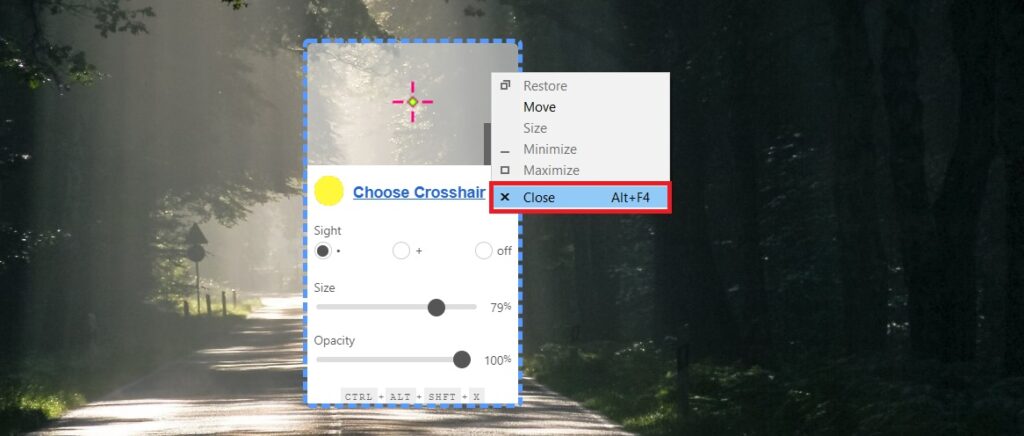
Closing Crossover app

That’s it! Now you know how to add and customize a crosshair for any game. Good luck and happy gaming!

Source: Gearvn


Tags: crosshairfps gamesgame newsgaming communityguide

Popular

  • The Dark Truth Behind Hidden Spy Cameras and Exploitation Rings

    0 shares
    Share 0 Tweet 0
  • MC Phương Thảo Jokes About Her ‘Bad Luck’ Curse in Liên Quân

    0 shares
    Share 0 Tweet 0
  • Melody Marks Claps Back at Plastic Surgery Rumors

    0 shares
    Share 0 Tweet 0
  • Viral Photo of Student Signing Yearbook on Lingerie Sparks Debate

    0 shares
    Share 0 Tweet 0
  • Paraguayan Fan Sparks AI Beauty Rumors at World Cup 2026

    0 shares
    Share 0 Tweet 0

Latest Stories

Hot Girl’s Sexy Hogwarts Look Sparks Social Media Buzz

Helia Bảo Hân’s Playful Sign Sparks Fan Reactions

Mai Dora’s Tearful Moment Turns Into International Meme

About eGirl Daily

eGirl Daily covers the hottest streamers, cosplay, gaming and viral internet culture, fresh every day. Learn more »

Recent Stories

  • Hot Girl’s Sexy Hogwarts Look Sparks Social Media Buzz
  • Helia Bảo Hân’s Playful Sign Sparks Fan Reactions

Newsletter

  • About
  • Contact
  • Privacy Policy
  • Terms of Service
  • DMCA

© 2026 eGirl Daily. All rights reserved.

No Result
View All Result
  • Home
  • It Girls
    • Cosplay
    • TikTok & Reels
    • IG Models
    • Models
  • Streamers
    • Streamer Girls
    • YouTubers
  • Tea & Drama
    • Scandals
    • Relationship Tea
  • Gaming
    • Game News
    • Esports
  • Net Buzz
    • Internet & Trends