

At home or in a company project room, you might use a wireless router to share internet and files with multiple computers. But if your wireless router breaks, you can quickly turn a Windows laptop into a handy replacement device. Here’s how.
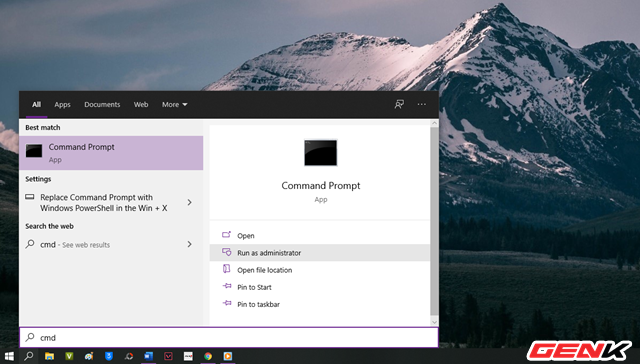
Open Command Prompt as an administrator by right-clicking the Start menu or searching for it.
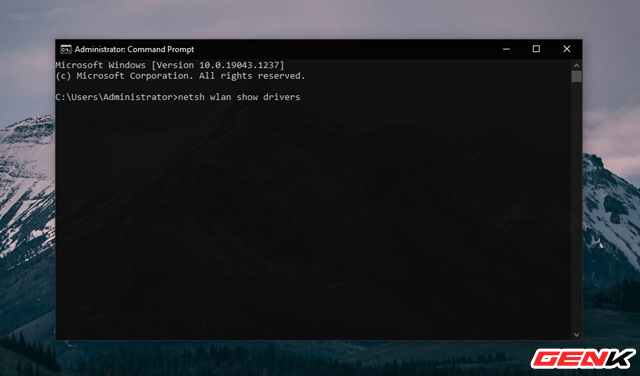
Type netsh wlan show drivers into Command Prompt and press ENTER.
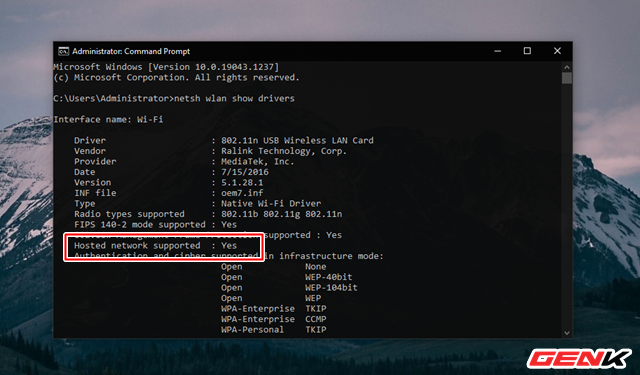
Wait a few seconds for the system to display info. Look for the line Hosted network supported. If it says Yes, your computer can create its own WiFi hotspot. If it says No, your PC doesn’t support this feature.
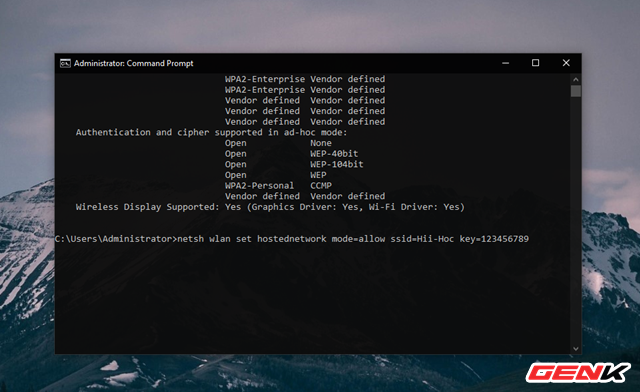
If you see Hosted network supported: Yes, enter the command netsh wlan set hostednetwork mode=allow ssid=[WiFi-name] key=[password]. Replace [WiFi-name] and [password] with your chosen network name and password, then press ENTER.
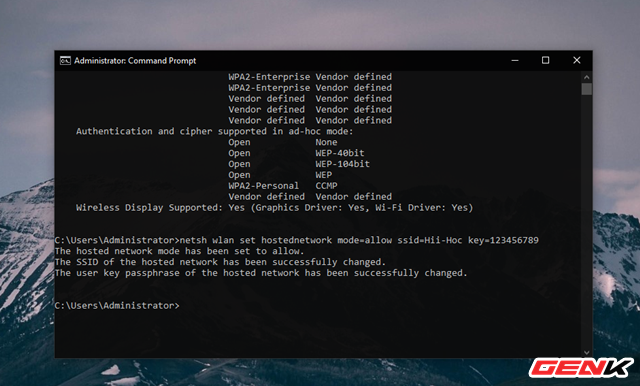
After setting it up, Command Prompt will show some confirmation messages.
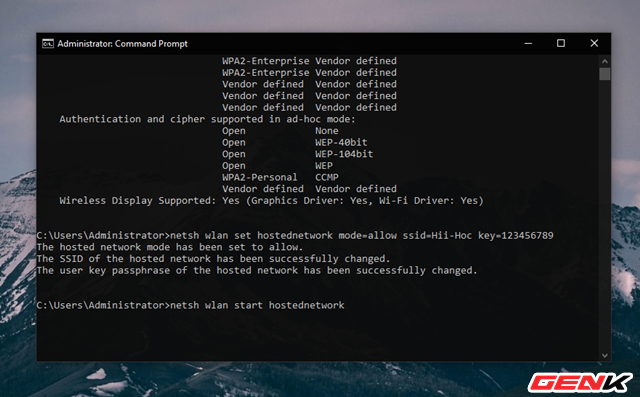
Next, type netsh wlan start hostednetwork and press ENTER to start your virtual router.
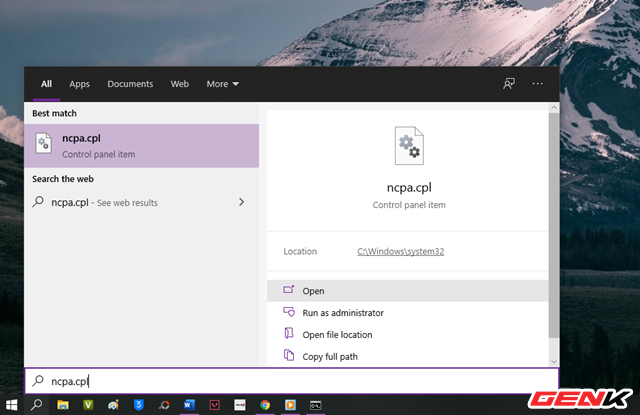
Once the virtual router is running, open Network Connections by typing ncpa.cpl into the search bar.
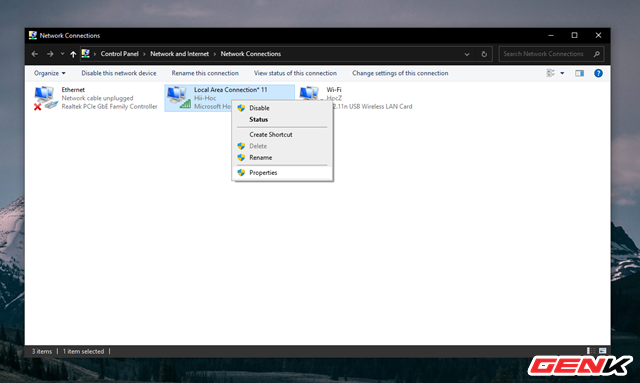
A list of connections will appear. Find the one you just created, right-click it, and select “Properties.”
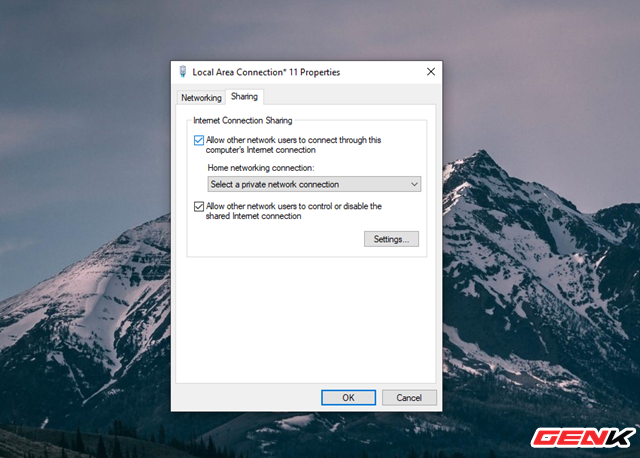
In the Properties window, click the “Sharing” tab at the top and check the box for “Allow other network users to connect through this computer’s Internet connection.”
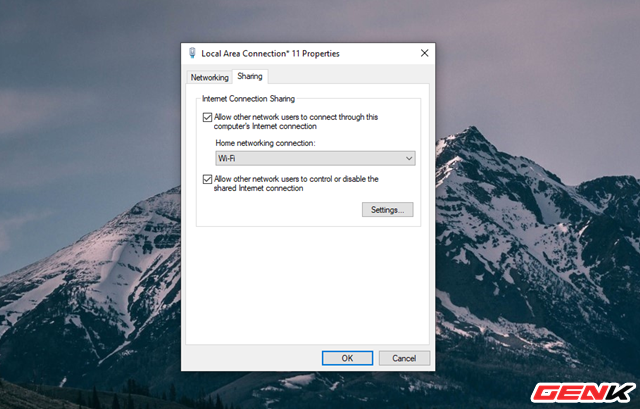
Then, open the dropdown menu under “Home network connection” and select the connection that matches your virtual router setup. Click “OK” to save.
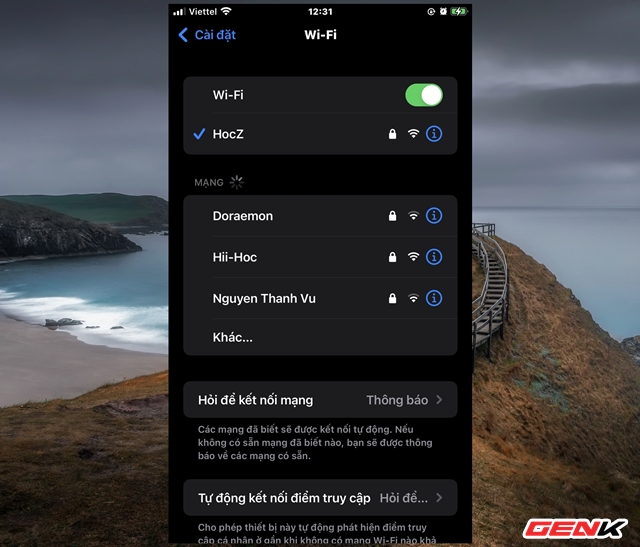
Now, just connect your device to the new “router” network. If you want VPN support, you’ll need to install and configure OpenVPN on your PC.
Pretty simple, right?

