

Does your PC have enough RAM?
You might be surprised to learn that many budget and mid-range PCs on the market today come with just 4GB of RAM. These machines quickly slow down when you open too many browser tabs or run RAM-heavy apps like Adobe Photoshop.
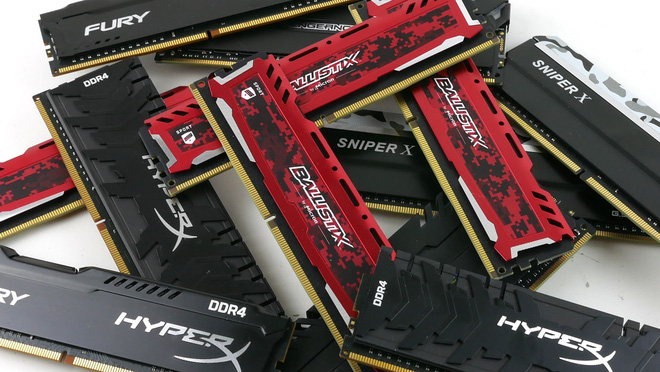
That’s why it’s recommended to have at least 8GB of RAM for everyday tasks. PCs used for web browsing, watching videos, running Microsoft Office, and playing a couple of esports titles should have at least 8GB.
For gamers who want to play the latest AAA titles, 16GB of RAM is the sweet spot. Beyond that, whether you upgrade further depends on your needs. For example, a PC used for 4K video editing might require 32GB of RAM.
Is your system bottlenecked by RAM?
If you suspect a RAM shortage is causing a bottleneck, you can check your system’s performance.
Press Ctrl + Shift + Esc to open Windows 10 Task Manager, then click “More details” for the advanced view. Go to the “Performance” tab, then select “Memory.”
Use your PC normally and watch the “In Use” and “Available” stats under the RAM usage graph. If there’s still plenty of free RAM, then RAM might not be the issue. But if “In Use” is close to 100% when your PC slows down, upgrading RAM could help.
Have you enabled XMP?
If you built your PC yourself, you might have forgotten to unlock the full potential of your RAM sticks. In your motherboard’s BIOS, look for a setting called “eXtreme Memory Profile” or XMP. For AMD CPUs, the equivalent is called DOCP.
Basically, XMP lets your RAM run at its advertised speed (like 3200MHz) instead of the default slower speed (like 2666MHz) without any manual tweaking.
Is your RAM speed fast enough?
Upgrading RAM isn’t as simple as swapping out a hard drive or graphics card. You need the right type (DDR4 for modern motherboards) and a speed your motherboard supports.
If you add a second RAM stick, both should run at the same bus speed. Many people prefer buying a matched RAM kit with identical sticks rather than mixing brands to keep things stable.
Check your current RAM speed to see how much of a boost an upgrade might bring. For example, upgrading from 2400MHz to 3000MHz RAM can noticeably improve performance. But going from 3000MHz to 3200MHz or 3600MHz usually won’t make a big difference.
Do you have an SSD installed?
If RAM isn’t causing the bottleneck, consider other upgrades to speed up your system. If you’re still using an HDD, your top priority should be switching to an SSD.
Even a budget SSD will make your PC feel much smoother than upgrading RAM alone. Windows will boot much faster, apps will open quicker, and game load times will improve.
Don’t toss your old HDD after upgrading. You can keep it for extra storage or turn it into an external drive with a USB enclosure.
Is your CPU or GPU holding you back?
If upgrading RAM and adding an SSD doesn’t help much, it might be time to consider a new PC or upgrading your CPU and graphics card.
Use monitoring tools like MSI Afterburner to check CPU usage. If your CPU hits 100% while gaming but your GPU only runs at 70-80%, your CPU is likely the bottleneck. Upgrading it will help your GPU perform better.
On the other hand, if your CPU is strong but your in-game FPS is still low, you probably need a better graphics card.
If your budget is tight, overclocking your components can squeeze out some extra performance. But keep in mind overclocking risks include voiding warranties and reducing the lifespan of your CPU and GPU.
Source: HowToGeek

