

One of the biggest perks of a MacBook is its speed. Macs are known for being lightning fast, even as they age. But like any computer, your Mac can slow down over time. It might lag, freeze, overheat, or take forever to boot up. This can be super frustrating and inefficient, but there are some easy fixes to get your Mac running smoothly again.

The simplest and most common fix is to restart your Mac. This clears out any background processes that might be overloading your CPU and causing lag. Just click the Apple icon in the top-left corner of your menu bar, then select Restart. If your Mac is still slow after that, it’s time to try some other solutions.
Too Many Apps Running
Running too many apps at once can slow down your Mac. To speed things up, close any apps you’re not using. The easiest way is through the Dock at the bottom of your screen. Open apps show a little glowing dot under their icon. Right-click the icon and select Quit to close it.
Another reason your Mac might be sluggish is background apps running without you noticing. macOS has a handy tool called Activity Monitor that lets you track and manage these processes. As the name suggests, Activity Monitor shows all the tasks running on your Mac and gives detailed reports on how they affect performance. You can find it under Utilities in the Applications folder or press Cmd + Space and type “Activity Monitor” in the search bar.
Activity Monitor breaks down activity into five categories: CPU, Memory, Energy, Disk, and Network. The CPU tab lists apps using the most processing power, Memory shows which programs are hogging RAM, and so on. To stop an app, select it, click the X in the top-left corner of the window, and confirm.
Low Disk Space

Your Mac needs enough free disk space to run smoothly. When your storage is almost full, your Mac can slow down a lot. Check your available space by clicking the Apple icon in the top-left corner, then choose About This Mac > Storage. You’ll see how much space is free, used, and what types of files are taking up the most room.
Click Manage if you want to free up space. You’ll see options like storing files in iCloud, optimizing storage, automatically emptying the trash, and reducing clutter. If none of those work, you can move files to an external drive or clear your system cache. You can also uninstall apps you no longer use by opening the Applications folder in Finder, switching to grid view, and sorting apps by “Last Opened” to find the ones you rarely use. Drag unwanted apps to the Trash and empty it.
Cluttered Desktop

When your Mac starts up, it loads and lists everything on your desktop. The more items there are, the longer it takes. If your Mac is slow to boot, try cleaning up or organizing your desktop. Delete duplicate files and move large files to an external drive or another folder.
If you still have a lot of stuff on your desktop, use Apple’s “Stacks” feature. It automatically groups files by type, date, or tags. No matter how messy your desktop is, Stacks can organize your files into neat categories. Right-click on your desktop and select “Use Stacks” to tidy up. To change how files are grouped, right-click again, choose “Group Stacks By“, and pick your preferred option.
Your macOS Is Outdated
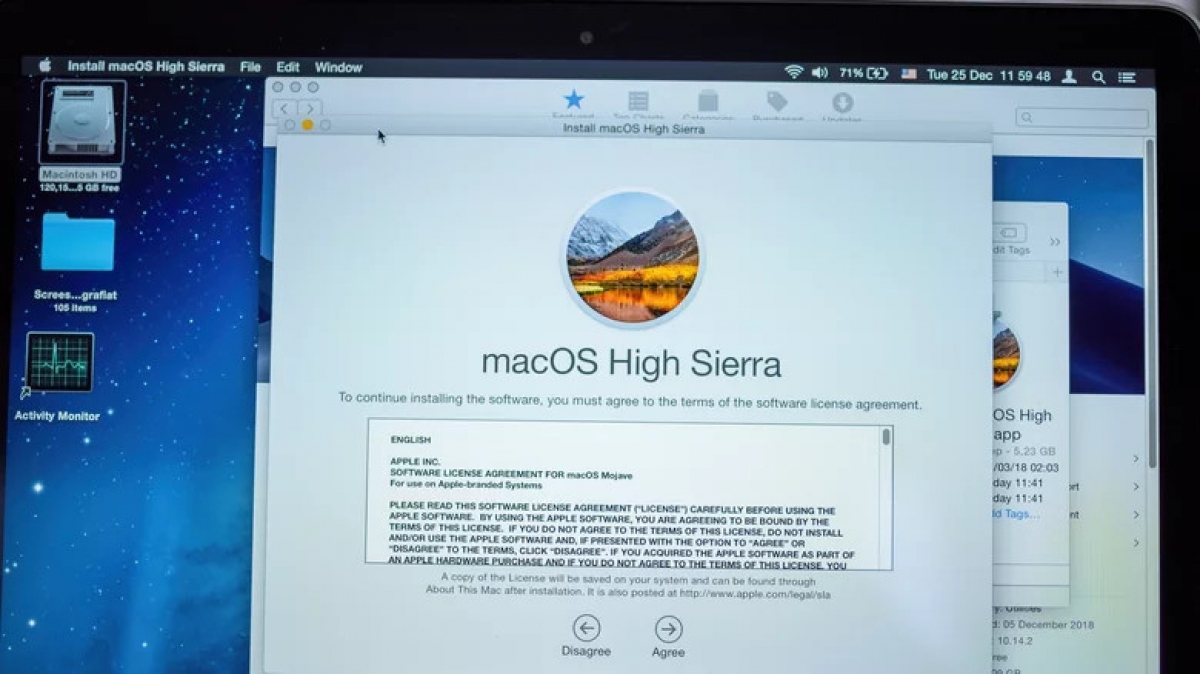
Apple releases macOS updates every year, packed with new features and improvements. Keeping your Mac updated is key to staying current with software and making sure your machine runs its best. If you’re running an older version of macOS, your Mac might be buggy and slow.
To update, plug your Mac into power and back up your data so you don’t lose anything important if something goes wrong. Then click the Apple menu in the top-left corner, go to About This Mac > Overview > Software Update. If an update is available, you’ll see a “Update Now” button. Click it and your Mac will start updating./.

